Adding and editing classrooms, teachers, groups and subgroups
Classroom
You can add a new classroom by going to the "Project" tab and clicking the "New classroom" button.
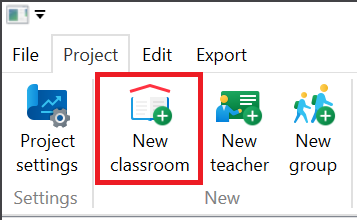
A new tab will open with the new classroom's properties, and a new entry will be added to the sidebar under the "Classrooms" category. You can set the classroom's name, description and capacity (the room capacity feature is currently unused).

Teacher
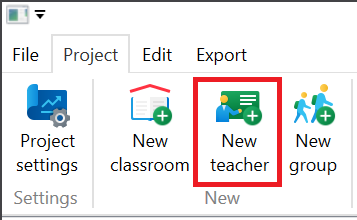
To add a new teacher, click the "New Teacher" button.
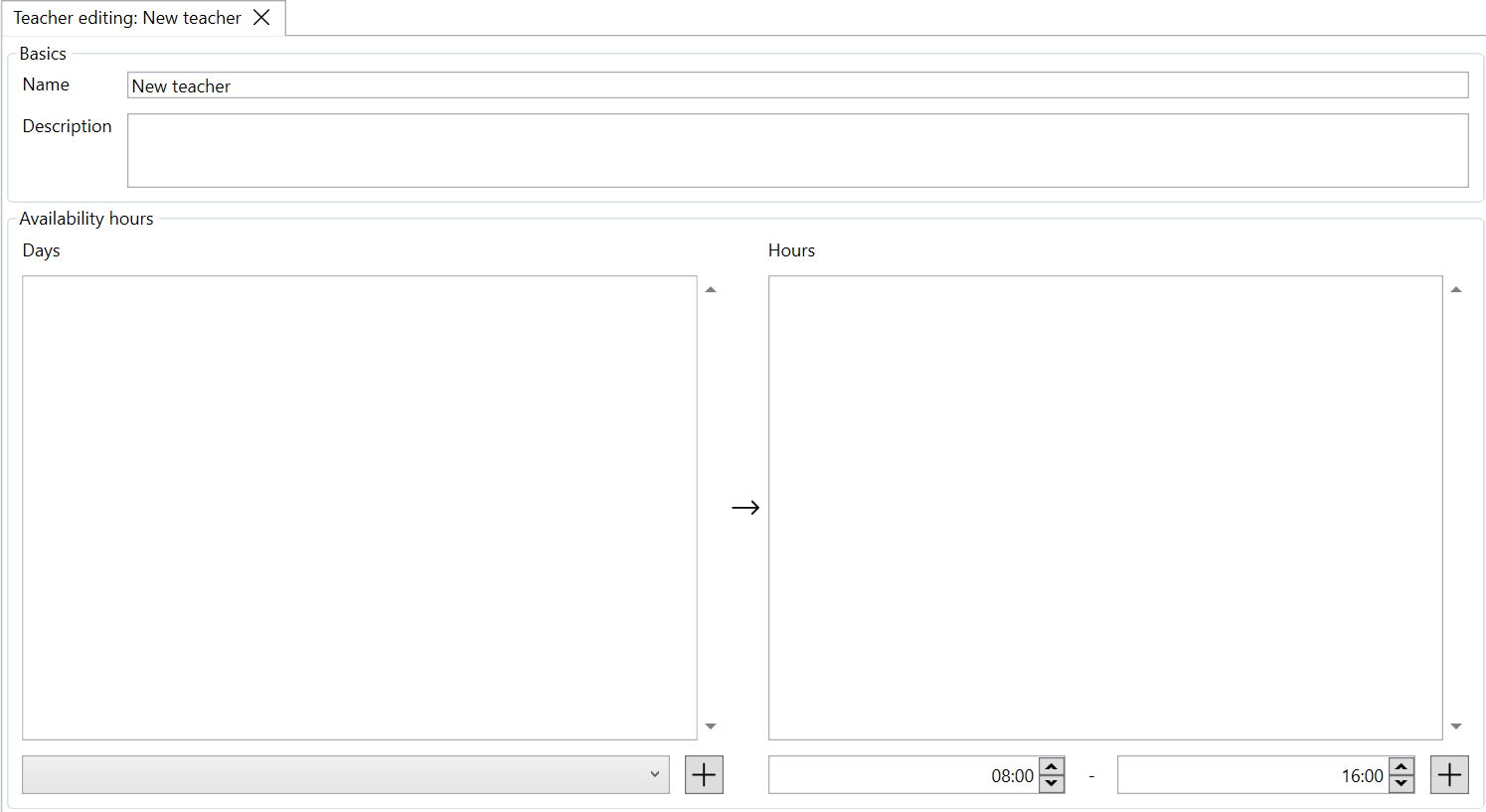
A new tab with the new teacher's properties will open and a new entry will be added in the "Teachers" category on the sidebar. You can edit the teacher's name and description, and add their availability hours. To add availability hours, first add a day from the drop-down list (defining this list was described in the previous step). Then, click the newly added day and, on the right, add a new time slot.
Group
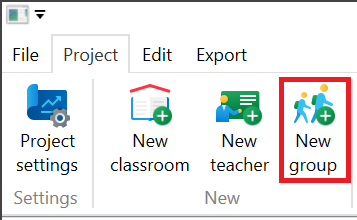
To add a new group, click the "New group" button.
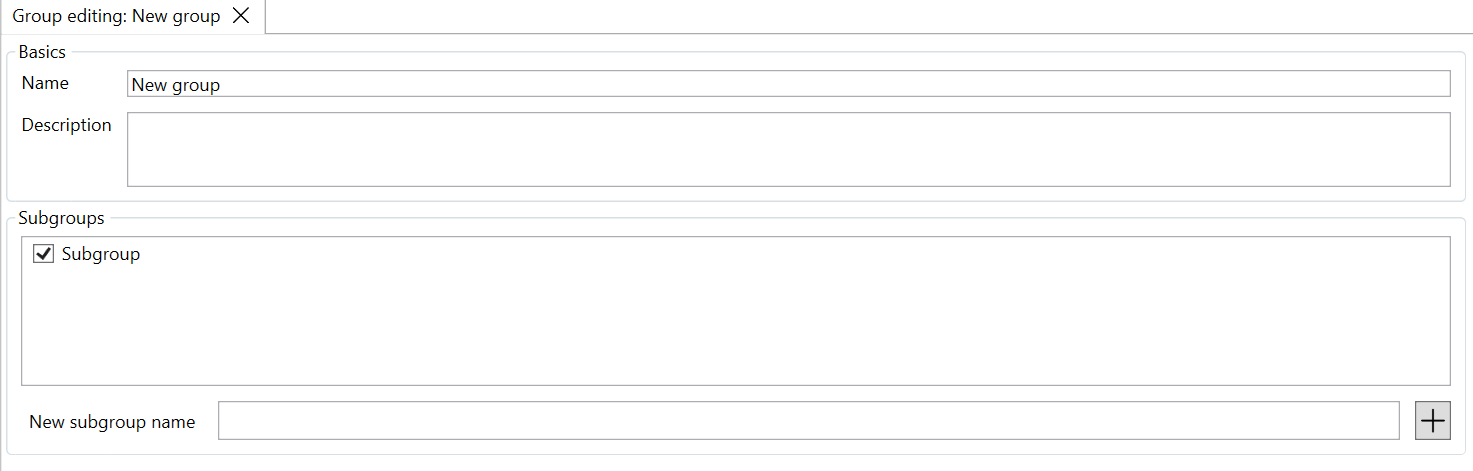
A new tab with the new group's properties will open and a new entry will be added in the "Groups" category on the sidebar. You can edit the group name and description, as well as add, delete, and assign subgroups.
Subgroup
To add a new subgroup, enter its name in the field below the subgroup list and click the "+" button. The subgroup will automatically be assigned to the currently edited group, and a new subgroup will appear in the sidebar below the name of the edited group.
To delete a subgroup, right-click its name in the list and click "Delete". To assign a subgroup to a group, simply check the box next to its name in the subgroup list.
Editing and deleting
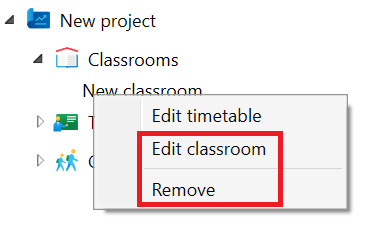
To edit or delete an existing classroom, teacher or group, right-click on its name in the side panel and select the appropriate option.