1
Guide: Editing timetable
Mateusz Skoczek edited this page 2026-02-13 19:08:23 +01:00
Editing timetable
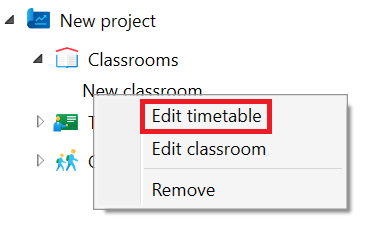
To edit a specific entity's timetable, right-click on its name in the sidebar and select "Edit timetable."
A new tab will open with the timetable editing view.
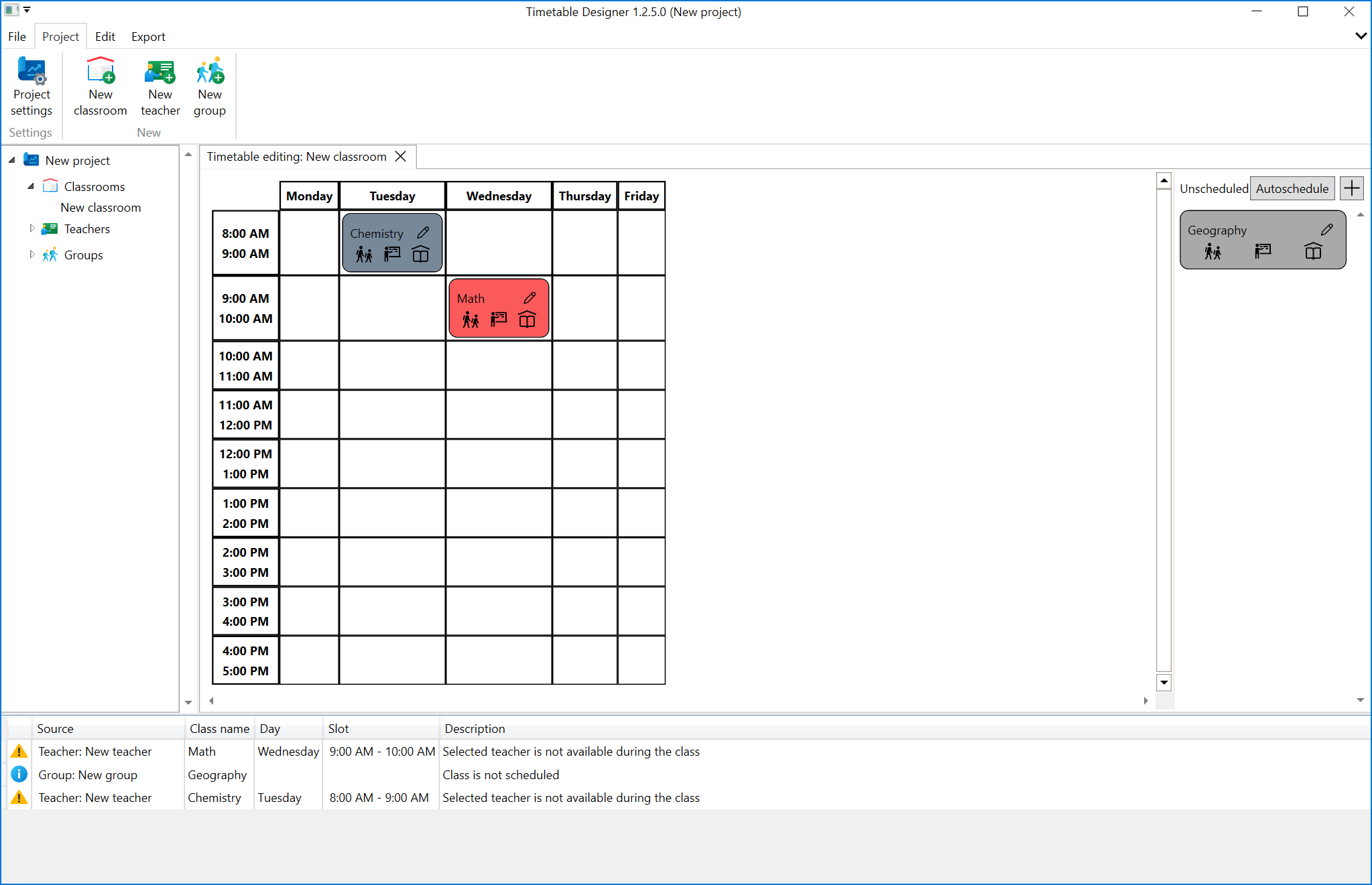
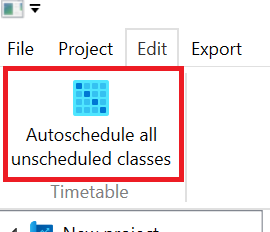
To add a new class, click the "+" button in the "Unscheduled" list. A new class will appear in the list. You can edit it by clicking the pencil icon. You can clone a lesson by clicking the copy button. You can delete a lesson by clicking the trash can icon. You can add and remove classes from the schedule by dragging tiles between the "Unscheduled" list and the schedule table. You can automatically add unscheduled classes to the schedule using the "Autoschedule" button (only those assigned to the currently edited entity) or using the main menu option available in the "Edit" tab.